Phone app works, monitoring does not
A working phone app proves that the app received video. The monitoring computer still needs its own test.
A feed is the video sent by a camera. A recorder collects camera video. A VPN is a connection to another network approved by your IT team.
Two paths can give different results
Some phone apps use a manufacturer’s cloud service. A monitoring computer may request a feed directly from a camera or recorder. The exact paths depend on your equipment and setup.
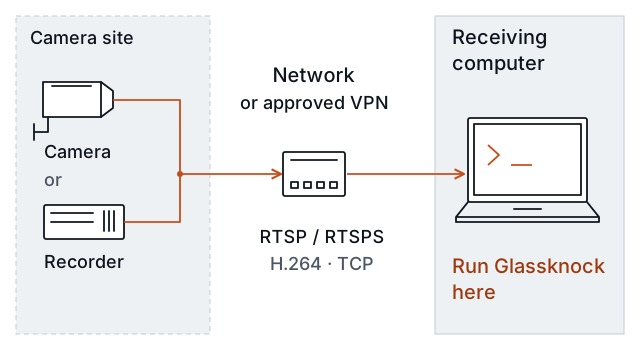
Camera or recorder → network or VPN → receiving computer. Run the test at the receiving computer, because that is the path you need to verify.
| Part of the connection | What can differ |
|---|---|
| Video source | The app can use a camera while monitoring uses a recorder channel. |
| Video address | The app’s link can differ from the direct feed address. |
| Account | The app login can differ from the device’s viewing account. |
| Network path | The phone and monitoring computer can use different networks or VPNs. |
| Video format | The app and monitoring system can request different feeds or formats. |
These are items to confirm. They are not proof of the cause at your site.
If you manage the site
Give your installer a clear description:
I can see the gate camera in its phone app. The monitoring computer receives no video. Please check the exact feed that monitoring needs, from the computer that will receive it. Save the first result. Explain what failed. Repeat the test after an approved correction. Keep the viewing password out of messages and reports.
Use Prepare an installer handoff to gather the remaining information. You do not need to find a video address by guessing device menus.
If you install or maintain cameras
H.264 is the supported video format. RTSP requests a video feed. RTSPS adds encryption to that connection. TCP carries the video data.
- Confirm which camera or recorder feed the monitoring system needs.
- Obtain its exact video address from the equipment configuration or the exact model’s official instructions.
- Confirm the approved viewing account for the device that serves this address.
- Use the intended receiving computer and approved network or VPN.
- Follow your first check. Save the report before a correction.
The current Glassknock preview uses H.264 video over RTSP or RTSPS using TCP. Confirm that the supplied feed matches these requirements. An app working with another format does not establish that Glassknock can test it.
Read each result
Glassknock separates contact, access, readable video, and reception during the sample. A pass at one step does not pass the next step.
| Observed result | Useful next step |
|---|---|
| The device cannot be contacted. | Check the supplied address and the computer’s network path. Use the connection guide. |
| The device refuses access. | Confirm the viewing account and permission. Use the access guide. |
| Access works but video does not. | Read The device answers, but there is no video. |
| All applicable checks pass. | Video worked for this computer during this sample. Confirm the monitoring system’s own operation separately. |
After an approved correction, repeat the same test from the same computer and network path. See Understand the result for comparison rules.